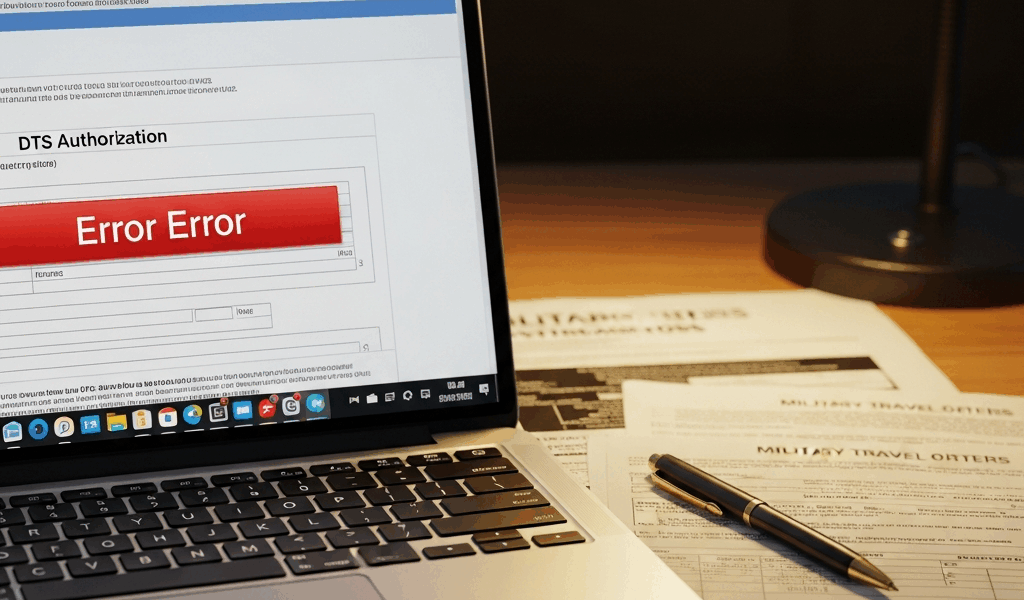
TDY Leave En Route Denied in DTS — How to Fix It
DTS has gotten complicated with all the conflicting advice flying around about leave en route. Ask three people in your unit how to add it correctly and you’ll get four different answers — at least two of which will get your authorization rejected by finance. I’ve been through this enough times with soldiers and civilians that I finally wrote it down. Today, I’ll share everything I know about fixing it.
The short version: DTS doesn’t explain itself when it rejects something. You get a denial code or a blank field where your leave data used to be, and you’re left guessing. This article tells you exactly where to look and what actually works.
Why DTS Rejects Leave En Route
Probably should have opened with this section, honestly. Would have saved me from running the amendment process twice on the same authorization back in 2021.
Three scenarios cover almost every leave en route denial I’ve seen. Figure out which one is yours and you’ve cut your troubleshooting time in half.
First: Leave got added after the authorization was already submitted or approved. DTS locks the record once it clears a certain workflow stage — backfilling leave afterward simply doesn’t function. The system was built so approving officials see the complete leave picture before they stamp anything.
Second: Leave dates conflict with the actual TDY window. Say your orders run June 10–18. You tried claiming leave en route June 8–10. DTS flags it — those dates fall outside the authorized travel period. Same thing happens when leave bleeds past the return date.
Third: Per diem stayed active during leave days. This one catches people constantly. You aren’t entitled to per diem while on leave during a TDY. DTS doesn’t auto-zero it. If you don’t manually kill the rate for those specific dates, finance rejects the whole thing during reconciliation. Every time. Don’t make my mistake.
Check Your Orders Before You Do Anything Else
Open the authorization in edit mode. Don’t assume leave en route made it into the system — verify it yourself.
Look in three places:
- The itinerary segment. Scroll to the leg where you added leave. You should see departure city, arrival city, mode of transport, and below that a “Leave En Route” line. If it reads “No” or shows blank, that’s your problem.
- The remarks field. Some approving officials require leave spelled out there — dates and leave type both. Do a Ctrl+F search for “leave” in the remarks section. Nothing there means it wasn’t documented.
- The leave dates line. DTS should display a leave start date and leave end date as separate fields. Both need to fall within the TDY window — not before it, not after it. Your order’s authority line defines that window. That’s your reference point.
If the authorization already shows “Approved” or you see a signature block on the record, you cannot edit it yourself — that’s intentional. You need an amendment. Jump ahead to that section now. Still sitting in “Draft” or “Pending Approval” status? Keep reading.
How to Add or Correct Leave En Route in DTS
Here’s the exact path. Open your authorization, click Edit at the top of the screen. Navigate to the Itinerary tab. Find the segment where leave applies — usually the final leg before your return date.
Inside that segment row, there’s a field labeled Leave En Route. Click the dropdown and select “Yes.” Three new fields will appear: Leave Start Date, Leave End Date, and Leave Type.
Enter your dates. They have to fall between your TDY departure and return dates. Orders say June 10–18 and you want leave June 10–12? That works. June 8–12? It won’t go through.
For Leave Type, use the dropdown. Pick “Annual” unless you’re using sick or emergency leave. The vast majority of TDY leave en route is annual. If you’re genuinely unsure, ask your unit’s leave administrator — don’t guess at it.
Now the part that trips everyone up: scroll down inside that same segment to the Per Diem or Meals and Lodging section. Find the per diem rate field. Zero it out for every single day you’re on leave. On leave June 10–12? Those three days show $0. Days on either side of that window keep their normal rate. This is the single most common reason finance rejects leave en route after everything else looks correct.
Save it. Submit the authorization for approval. Watch your inbox for either an approval confirmation or a denial message carrying a specific code — you’ll need that code if things escalate.
When Your Orders Are Already Approved and You Need an Amendment
Approved orders lock out the traveler from editing. That’s by design — it protects the record’s integrity. But they can be amended, and the process isn’t terrible.
Log into DTS, pull up the approved authorization, and look for a button at the top labeled Request Amendment or Amend Authorization. Click it. DTS generates a new version stamped as “Amendment.”
Make your leave en route changes inside the amendment exactly as described above — dates, leave type, per diem zeroed out for leave days. Then find the Amendment Justification field. Keep it short. One sentence is enough:
“Adding leave en route 10–12 June, annual leave, previously omitted from original authorization.”
That’s it. Approving officials process dozens of these and recognize the format immediately. A paragraph doesn’t help you — it just creates more to read.
Submit it. Some units route amendments through the commander or leave approver before finance ever sees them. Check your unit’s travel policy or call your travel office before you assume it goes straight through. Amendments typically take 2–5 business days depending on how many hands the approval chain involves.
Note on Commander Memorandums
A handful of units still require a signed memo from your commander explaining why leave wasn’t included originally. If yours is one of them, draft something plain: “I request approval of the enclosed amendment to TDY authorization [order number] to add leave en route from [dates]. The leave was inadvertently omitted from the original submission.” Commander signs it, you attach it to the amendment, done. Don’t overthink the language.
If Finance Still Rejects It After the Fix
Corrected authorizations still occasionally hit a wall in the finance system. When that happens, you have escalation options — and they actually work.
Start with your travel office or unit’s SATO (Standard Army Travel Office) or CTO (Commercial Travel Office) representative. Bring them three things: the DTS authorization number, the specific denial code, and a screenshot of what DTS is showing you. They have direct lines to the DTMO help desk and can escalate faster than you can working through standard channels.
If you’ve already traveled and the authorization is genuinely stuck, you can amend your travel voucher post-trip and claim the leave en route there instead. It’s not the clean solution — it creates a paper trail that needs explaining — but it works when the authorization can’t be corrected in time.
Have these ready before you call anyone: order number, authorization confirmation code, leave dates and type, per diem amounts you should have received versus what you actually got. That information gets the help desk to your specific record in under two minutes. Without it, you’re waiting while they search.
Right now — open DTS in another tab, pull up your authorization, and check the status. Don’t sit on it waiting for the finance rejection letter to arrive. Fix it today.



Leave a Reply