Why DTS Gets Your Mileage Wrong in the First Place
TDY mileage reimbursement has gotten complicated with all the conflicting information flying around about how DTS actually works. As someone who has watched enough vouchers get rejected or underpaid, I learned everything there is to know about where the system breaks down — and where soldiers leave real money sitting on the table.
Today, I will share it all with you.
But what is the core DTS mileage problem? In essence, it’s a routing system that doesn’t always pick the route you actually drove. But it’s much more than that — it’s three separate failure points stacked on top of each other.
The first is route defaulting. You enter an origin and destination, and DTS grabs whatever its internal map layer spits out first. That might be 15 miles longer than what you actually drove. No warning. No flag. Just a smaller check.
Second: map source mismatches. DTS runs its own routing engine — not Google Maps, not MapQuest. Enter the same two cities into all three and you’ll get three different numbers, sometimes off by 20 or 30 miles. The system never tells you which source it pulled from. So you can’t predict what you’re going to get.
Third: outdated address databases. TLE and leave addresses pull from personnel records. If your home-of-record still shows a barracks you left three years ago, DTS calculates from there. Your voucher lists origin point A. You drove from point B. Garbage in, garbage out — at least if the underlying records are stale.
Check This Before You Assume It Is a Finance Error
Probably should have opened with this section, honestly. Most soldiers go straight to complaining to finance when the fix is sitting inside their own claim the whole time.
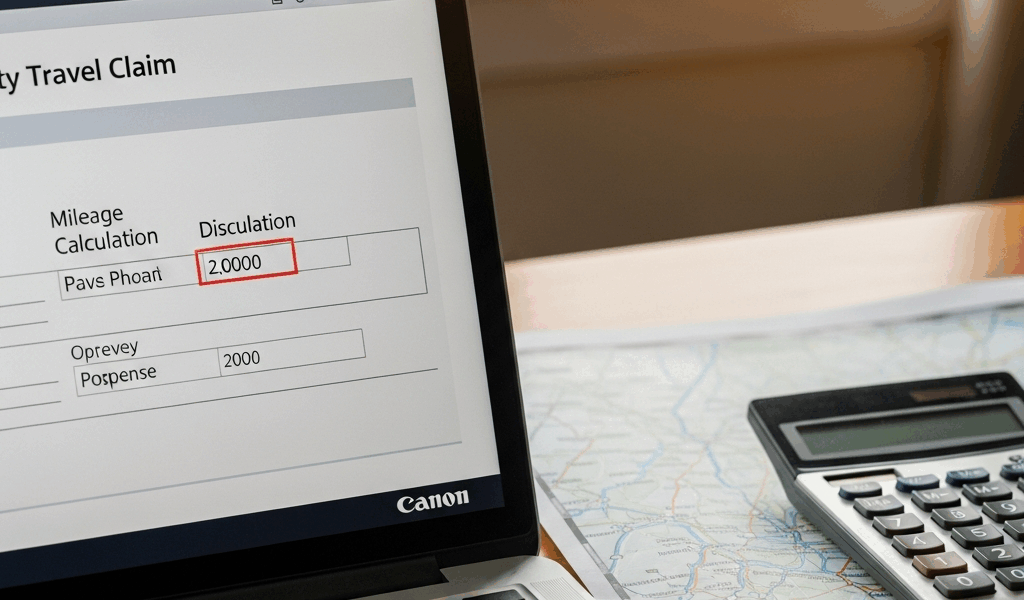
Open your voucher in DTS. Find the mileage line item — it lives under “Lodging and Meals” or “Transportation” depending on your claim type. Click into the mileage calculation field. Three things will appear: origin address, destination address, calculated miles.
Write them down. Verify each one.
- Does the origin match where you actually left from?
- Is the destination correct?
- Does the mileage match what MapQuest or Google Maps shows for those exact same addresses?
If the origin reads “123 Main Street, Fort Benning, GA” but you left from “4567 Riverside Drive, Columbus, GA” — that’s your problem right there. DTS pulled from your home-of-record instead of your actual TLE address. Fix that field, the mileage recalculates, done. Finance never needs to see it.
Check the odometer reading too. Inputting “approximately 237 miles” gives DTS room to round in ways you won’t like. Pull your GPS history or that odometer photo sitting in your camera roll. Real numbers beat estimates every single time. Don’t make my mistake of assuming the estimate would come out fine — it didn’t. Came out to $31 short on a four-hour drive.
One more thing: read the voucher submission notes. A previous AO may have left a comment like “used MapQuest default route per regulation” or “TLE address was invalid, used backup origin.” That tells you exactly what broke and how to frame your correction. Takes thirty seconds. Worth it.
How to Correct Mileage on a Claim Not Yet Approved
If your voucher is still open or returned for corrections, you have the cleanest fix available to you.
Select the mileage field inside the transportation section. DTS opens an edit window with a box labeled either “Actual Mileage Override” or “Manual Mileage Entry” — wording varies by version. This field exists for exactly this scenario.
Enter your correct mileage. No rounding. MapQuest shows 247.3 miles, enter 247. Odometer read 252, use 252.
Now — and this is the step most people skip — write your justification in the remarks field below. Something like: “Original DTS calculation used incorrect origin address. Corrected to actual TLE location per MapQuest routing verification. Odometer reading confirms 252 miles.” Attach a MapQuest screenshot if you have it. Odometer photo if you took one. The AO needs to see your work, not guess at it. Clear justification gets approved. Mystery corrections get kicked back.
Resubmit. Most come back within 3–5 business days. If it returns again with the same flag, take your documentation package directly to your S1. That usually ends it fast.
How to Fix It After the Claim Is Already Paid Out Wrong
You approved the voucher. You got paid. Then you found your MapQuest receipt in a folder and realized DTS shorted you 84 miles.
Welcome to supplemental voucher territory.
In DTS, create a new voucher marked “Supplemental Claim.” Link it to the original voucher number. Calculate the mileage difference at the current DTS rate — 67 cents per mile as of 2025, though that number changes annually, so verify before you submit.
Eighty-four miles at $0.67 comes out to $56.28. That’s what the supplemental voucher requests.
Documentation is not optional here. MapQuest printouts with full route details, odometer screenshots, GPS history — anything that proves the original calculation was wrong. Stack the evidence.
Most commands allow supplemental claims within 60 days of original payment. After that, the window tightens and approvals get harder. Move fast.
Finance will sometimes push back — I’m apparently the type who hears “we already closed that voucher” more than most, and staying calm works for me while getting frustrated never does. Respond with your documentation and keep it factual: “The original DTS calculation defaulted to an incorrect origin address. Corrected documentation attached. Requesting supplemental reimbursement for verified mileage overage.” Short. Documented. No emotion.
These usually approve. Takes follow-up, though. Many soldiers quit after one rejection. Don’t be that person — the money is yours if the travel was legitimate.
What to Do If DTS Will Not Accept Your Corrected Mileage
Sometimes fields lock. Sometimes an AO rejects your override three times without a single explanation. Sometimes DTS just breaks in ways that defy logic.
Call the DTMO help desk — Defense Travel Management Office, the team that built DTS. The number is on every DTS login screen. Explain the specific issue: origin address error, map mismatch, locked field, whatever the problem actually is. They can pull up your voucher in real time and usually push through a manual override in one call. That said, have everything ready before you dial. MapQuest printout. Odometer photo. TLE address correction. The DTMO team moves fast when you come prepared and slow when you don’t.
If DTMO can’t resolve it — rare, but it happens — loop in your unit S1. They have escalation channels to finance that individual soldiers simply don’t have access to. One email from HR tends to unstick things quickly.
Final check before you panic: confirm you submitted the voucher to the correct approver. Wrong submission lane kills more claims than system errors do. That’s a frustrating lesson to learn after three weeks of follow-up.
Here’s the full checklist:
- Verify DTS calculated route, origin, and destination
- Add justification and documentation to remarks
- Resubmit if returned or still open
- File supplemental voucher if already paid
- Call DTMO help desk if the system locks
- Loop in S1 if nothing else moves
Money on the table only stays there if you stop pushing. So don’t stop.



Leave a Reply