DTS Per Diem Wrong Location — How to Fix It
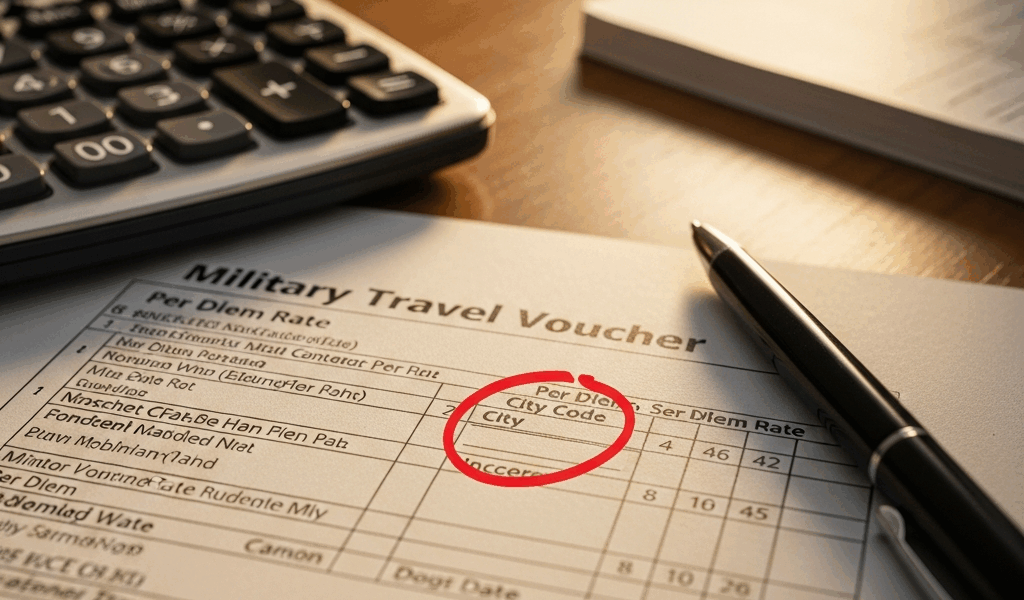
DTS per diem has gotten complicated with all the location mismatches and rate errors flying around. If you’re staring at a voucher right now wondering why your reimbursement looks suspiciously low, you’re probably dealing with a wrong-city problem — and it’s more common than Finance will ever admit out loud.
As someone who has fought DTS over per diem location errors twice in three years, I learned everything there is to know about how the system pulls city data, where it breaks, and how to actually fix it. Today, I will share it all with you.
The first time, my TDY to Fort Bragg auto-populated as “Fort Liberty” before the name change fully synced in the backend. The second time, I watched a soldier get paid San Antonio rates while she’d been working in El Paso the entire trip. Both situations cost somewhere between $40 and $60 per day. Fourteen days out? That’s real money the system quietly pocketed.
Why DTS Gets the Location Wrong
Two culprits. Knowing which one applies to your situation matters — because the fix is different for each.
Orders imported with a generic installation city. When TDY orders flow into DTS from the personnel system, the software sometimes grabs the base name instead of the actual reporting location. Your orders say “TDY to Fort Carson, specifically reporting to the Public Affairs office in downtown Denver.” DTS reads “Fort Carson” and locks your rate to El Paso County — not Denver. GSA per diem is city-specific. El Paso County and downtown Denver are not the same number. Not even close.
Manual entry errors during authorization creation. This one is purely human. Someone — maybe you, maybe your S1 clerk batch-entering five authorizations at 1600 on a Friday — typed the wrong city code, picked the wrong installation from the dropdown, or didn’t notice the system defaulted to the nearest major base instead of your actual reporting address. Happens fast. Nobody catches it until you’re already home.
Probably should have opened with this section, honestly. Identifying the source of the error cuts your troubleshooting time in half.
Check Your Per Diem Rate Before You Submit
But what is the per diem entitlements tab? In essence, it’s the screen inside DTS that shows your lodging rate and M&IE for each travel day. But it’s much more than that — it’s your first diagnostic tool, and most people never look at it until something goes wrong.
So, without further ado, let’s dive in.
Inside DTS, navigate to the Per Diem Entitlements tab. Find the city name the system has attached to your rates. Write it down. Write down the dollar amounts next to it — lodging and M&IE separately. You need both for comparison. Don’t skip this part.
Open the GSA Per Diem Lookup in another tab. Go to gsa.gov/travel/plan-book/per-diem-rates. Select your travel year. Search the actual city you reported to — not the base name, the city. Waco, not Fort Hood. Denver, not Fort Carson. The tool returns lodging and M&IE rates with effective dates broken down cleanly. If your trip crossed two cities, run two separate searches. That output is your ground truth.
Compare what GSA shows against what DTS is giving you. Gap exists? DTS has the wrong location loaded.
Quick real-world example: TDY orders to Fort Hood, but your actual work location was Waco. GSA shows Waco lodging at $119 and M&IE at $62. DTS shows you $89 lodging and $51 M&IE — the Killeen rate, pulled from the Fort Hood zip code. That’s a $21 to $30 daily gap. Over 14 days, you’re looking at somewhere between $294 and $420 the system quietly shorted you. For a two-week trip. Worth fixing.
How to Correct the Location in Your Voucher
If you catch this before submitting, the fix lives entirely inside DTS. No Finance involvement needed.
- Open the authorization. Go to Authorizations, locate your trip, click Edit — not Amend. Edit means the approval hasn’t locked it yet. Amend is a different workflow entirely and creates more paperwork than it’s worth at this stage.
- Navigate to the Itinerary section. Your duty location field lives here. Depending on your DTS version it might read “Duty Location” or “Destination Duty Location” — either way, it’s the same field, same fix.
- Clear the current entry and search for the correct city. Type the actual city name. Not the base name. “Denver,” not “Fort Carson.” A dropdown will appear with matching locations. Select the entry that corresponds to your real reporting address.
- Tab out of the field. DTS should recalculate your per diem rate automatically within a few seconds. If it doesn’t, a yellow warning box will appear prompting you to recalculate manually. Click it.
- Verify the updated rate. Head back to Per Diem Entitlements and confirm the new numbers match your GSA lookup results exactly.
- Save and submit. If the authorization wasn’t yet approved, you’re finished. If it was already approved, keep reading.
Sometimes the rate just refuses to update after a location change. I’m apparently cursed with the stubborn DTS instances and manually deleting the lodging and M&IE amounts, saving, then letting DTS repopulate them works for me while simply changing the city field never does. Clunky workaround. Still works. Don’t make my mistake of spending 45 minutes clicking refresh instead of just wiping the amounts manually.
When You Need Finance or Your AO to Step In
Approved authorization means a locked voucher. You’re not editing anything without outside help.
Voucher not yet submitted for reimbursement? Contact your approving officer directly and ask them to unapprove the authorization. Explain that the duty location is wrong and the per diem rate needs correction. Bring your GSA lookup printout — a screenshot works fine. A competent AO unapproves it in under two minutes, lets you fix the city, and re-approves it. Total friction: one email and maybe one follow-up.
Voucher already submitted but Finance hasn’t processed it yet? Email Finance. Keep it short. Include a screenshot of the GSA lookup showing the correct city rate, a screenshot of your voucher showing the wrong rate, and one sentence of explanation: “My TDY was to [correct city], but DTS shows [wrong city]. The per diem rate should be $X, not $Y. Please correct before processing.” Finance can amend a voucher in pre-processing status faster than the system can — that is because human intervention at this stage requires no system approvals, just a manual adjustment before the payment batch runs.
Dealing with amended orders? If your orders were amended to a different location after the original TDY was entered, DTS may have pulled from the wrong version entirely. You have a 180-day amendment window to address this. Submit an amendment request through your chain citing the corrected orders and attach the GSA verification. That pairing — amended orders plus GSA printout — is the documentation package Finance actually needs to act without pushing it back on you.
What to Do If You Were Already Underpaid
You got paid. The rate was wrong. Now what.
File a supplemental voucher. Call or email Finance and tell them you’re submitting a supplemental for the per diem difference on a specific trip — give them the voucher number, the travel dates, and the location discrepancy in one sentence. Upload the GSA lookup documentation and a brief written statement explaining the error. Finance calculates the delta: lodging plus M&IE per day, multiplied by the gap between what you received and what the GSA rate actually was, times the number of affected travel days. Then they process it as a separate payment.
The timeline depends entirely on your Finance office’s backlog. I’ve seen supplementals processed in 12 business days. I’ve also seen them sit untouched for six months. The follow-up email at the 30-day mark usually helps.
Is it worth chasing? Honestly, it depends. Difference is $50 total and you’re separating in 90 days? Probably let it go — the bureaucratic friction genuinely isn’t worth it for a tank of gas. Difference is $400 and you’ve got two years left on your contract? Pursue it, document everything, and be politely persistent. That’s earned pay sitting in a holding account.
That’s what makes the GSA lookup tool so valuable to us soldiers navigating DTS — it gives you the receipts before the conversation with Finance even starts. Check your rates before you submit. Cross-reference the city every single time. Fix location errors the moment you spot them. The system isn’t going to protect your money. You have to.



Leave a Reply